
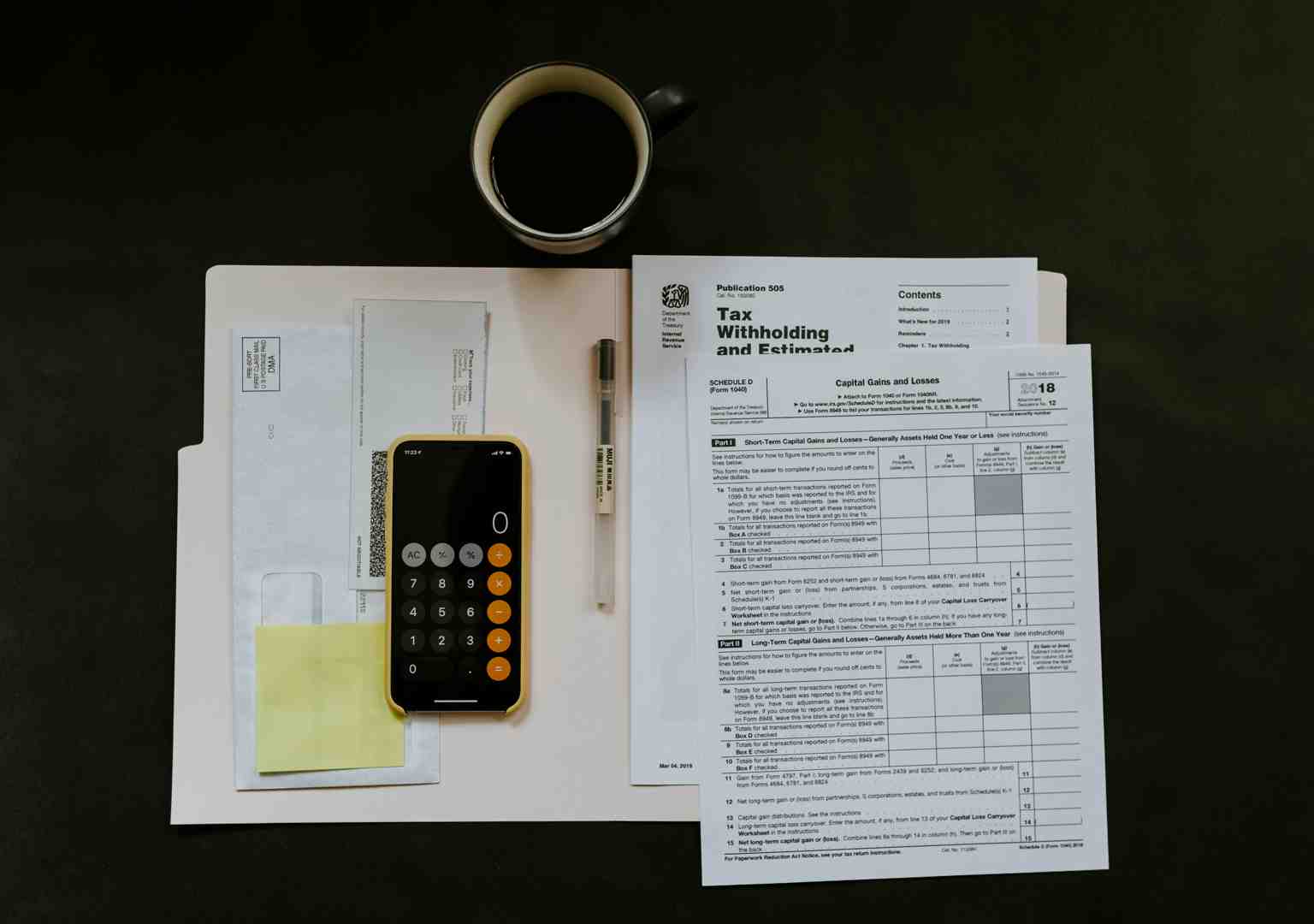
Why a Clean QuickBooks File Is Critical for Your Business Success
Clean up QuickBooks is essential for accurate financial records and sound business decisions. A messy file leads to incorrect financial reports, potential IRS penalties, and flawed decisions that can cost you thousands.
Quick Steps to Clean Up QuickBooks:
- Back up your company file - Create a restore point before making changes
- Reconcile all accounts - Match your bank and credit card statements to QuickBooks
- Review your Chart of Accounts - Merge duplicates and remove unused categories
- Fix Accounts Receivable/Payable - Address old invoices and unpaid bills
- Categorize transactions correctly - Fix miscategorized expenses and remove duplicates
- Review financial reports - Check for anomalies in your Profit & Loss and Balance Sheet
- Set up internal controls - Create user permissions and regular workflows
- Back up again - Save your cleaned-up file
A messy QuickBooks file is more than just annoying. It's a serious business risk.
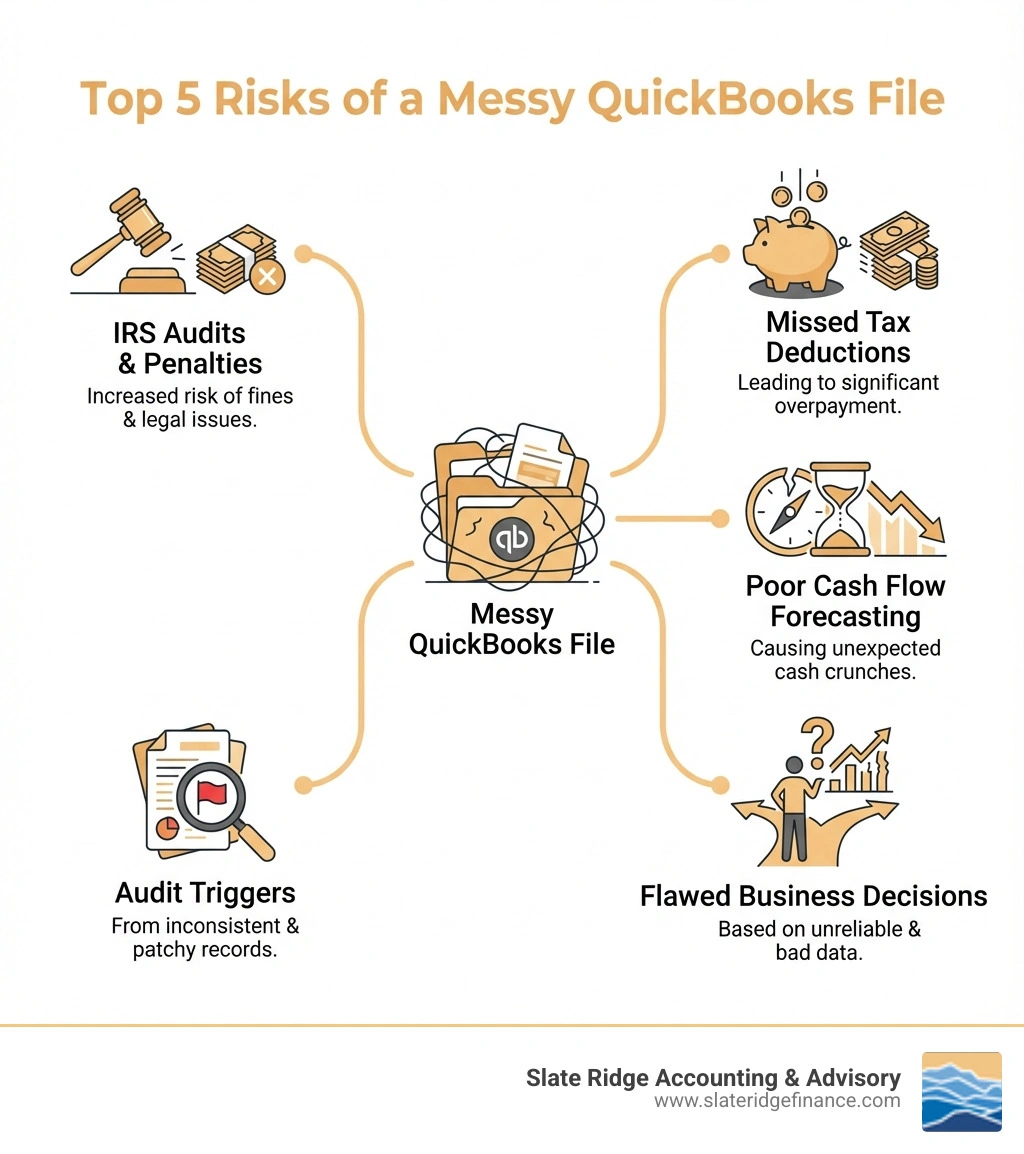
Failing to keep your QuickBooks file clean can lead to IRS audits, penalties, missed tax deductions, and flawed cash flow forecasting. It also prevents you from creating useful financial projections or communicating clear financial goals to your team.
The problem compounds over time as duplicate transactions pile up, bank feeds go unmanaged, and old invoices sit unpaid. Before you know it, you can't trust your own financial reports.
The good news? A systematic cleanup process can restore your financial clarity. Whether you tackle it yourself or hire a professional, cleaning up your QuickBooks file is an investment that pays dividends in better decision-making, tax savings, and peace of mind.
Find more about clean up QuickBooks:
Why Your QuickBooks File Needs a Cleanup
Imagine trying to steer a dense forest without a map or compass. That's what running a business with a messy QuickBooks file feels like. Your financial records are the backbone of your business, providing crucial insights into its health and direction. When these records are cluttered or inaccurate, your entire operation can suffer.
So, what are the common culprits behind a messy QuickBooks file that signal the need for a thorough clean up QuickBooks?
- Duplicate or Missing Transactions: Seeing the same expense twice or missing an income stream throws off your balances and complicates reconciliation.
- Outdated Chart of Accounts: A bloated or inaccurate Chart of Accounts (COA) with unused or misclassified categories will skew your financial reports.
- Unmanaged Bank Feeds: If bank feed transactions aren't regularly matched and categorized, you'll have a backlog of unverified entries, making your QuickBooks balance inaccurate.
- Old Invoices or Bills: Lingering uncollectible invoices or unrecorded bill payments inflate your Accounts Receivable and Payable, distorting your cash flow picture.
- Unreconciled Accounts: Without regular reconciliation, discrepancies in bank and credit card accounts accumulate, making your QuickBooks balances untrustworthy.
- Inaccurate Financial Statements: Flawed data leads to unreliable Profit & Loss statements and Balance Sheets, hindering your ability to assess profitability, assets, and liabilities.
Risks of Inaction
Ignoring these signs and neglecting to clean up QuickBooks comes with a host of serious risks that can severely impact your business. A messy file isn't just an inconvenience; it's a liability:
- IRS Audits and Penalties: Messy books can lead to overstating income or missing deductions, triggering penalties for inaccurate tax filings or even an audit. Improperly recorded expenses can result in higher estimated tax liabilities.
- Missed Deductions: Without clearly categorized expenses, you'll likely overlook legitimate tax write-offs and overpay on your taxes. The IRS only knows what you report for most expenses.
- Poor Cash Flow Forecasting: Inflated Accounts Receivable or inaccurate Accounts Payable makes it impossible to predict cash flow and make sound financial decisions.
- Flawed Business Decisions: Decisions based on wrong data—from pricing to hiring—will be flawed, hindering your Business Growth Strategies.
- Inaccurate Financial Reporting Services: A messy file prevents you from generating reliable financial reports needed for loans, investors, or internal evaluation.
- Inability to Create Projections: A clean historical record is necessary to create meaningful financial projections and set clear goals for your team.
Balances on the balance sheet are cumulative, and errors will only disappear if the books are cleaned up. Don't let a messy QuickBooks file hold your business back.
The Essential 8-Step Guide to Clean Up QuickBooks
When your QuickBooks file feels like a tangled mess, a systematic approach is your best friend. This step-by-step process provides a clear path to accurate financial records, helping you regain control and confidence in your numbers. We recommend following these steps sequentially for the best results.
Step 1: Backup Your Company File
Before making any changes in QuickBooks Desktop or Online, your first and most crucial step is to create a full backup. This acts as a financial safety net, a restore point you can revert to if anything goes wrong during the cleanup, giving you peace of mind.
- To create a backup in QuickBooks Desktop, steer to
File > Back Up Company > Create Local Backup. Follow the prompts to save your backup file to a secure location. This protects your historical data. You can learn more about how to Back up your QuickBooks company file on Intuit's support pages.
Step 2: Reconcile Bank and Credit Card Accounts
Reconciliation is the cornerstone of accurate bookkeeping and a critical step in any clean up QuickBooks effort. It involves comparing your QuickBooks transactions against your bank and credit card statements to ensure they match. Every transaction entered—expenses, bill payments, deposits, and customer payments—must be matched to bank records.
- Why it's crucial: Reconciliation identifies discrepancies, missed transactions (like bank fees), and duplicates. Even small differences can signal bigger problems, and this process ensures your QuickBooks matches actual bank activity.
- How often: Reconcile all bank and credit card accounts monthly to keep the task manageable and catch errors early.
- Common issues: Common issues include incorrect beginning balances, often due to setup errors, modified transactions, or file conversion problems. QuickBooks offers specific guidance on how to Fix beginning balance issues in QuickBooks Desktop.
For a detailed guide on the process, refer to How to reconcile your bank accounts.
Step 3: Review and Refine Your Chart of Accounts
Your Chart of Accounts (COA) is the foundation of your financial reports. It shows historical trends, forms the basis for forecasts, and is essential for accurate reporting and informed decision-making.
- What is a Chart of Accounts? The COA is a list of every account in your general ledger, used to categorize all financial transactions, including income, expenses, assets, liabilities, and equity.
- Common COA errors: Common errors include inconsistent naming, improper detail, outdated or duplicate accounts, and misclassified transactions (e.g., software filed under office supplies).
- Refining your COA:
- Merging Duplicate Accounts: Merge accounts serving the same purpose (e.g., "Advertising" and "Marketing Expenses").
- Deactivating Unused Accounts: Make irrelevant accounts inactive (e.g., a paid-off loan). This tidies your COA without deleting historical data.
- Tailoring Categories to Your Industry: Tailor categories to your industry for better performance tracking, as generic categories may not be sufficient. This is a key part of Modern Accounting Practices.
By streamlining your COA, you ensure that your financial data is categorized correctly, making your reports more meaningful.
Step 4: Tidy Up Accounts Receivable and Payable
Accounts Receivable (AR) and Accounts Payable (AP) represent money owed to you and money you owe. Cleaning them up is vital for an accurate picture of your cash flow and financial obligations.

- Addressing old, uncollectible invoices: Review your aging AR report for uncollectible invoices. These may need to be written off as bad debt, which requires a journal entry. This has tax implications, so consult a professional before writing off large amounts.
- Applying customer payments correctly: Ensure all customer payments are applied to the correct invoices. Unapplied payments inflate your AR and can confuse clients.
- Reviewing open bills: Examine your AP aging report for old bills that were paid but not cleared, or bills from old vendors. Apply payments correctly and void outdated bills.
- Improving cash flow management: Clean AR and AP lead to better cash flow management and more accurate forecasting.
For more insights, check out our Tips for Managing Small Business Accounts Receivable and Payable.
Step 5: Fix Miscategorized and Duplicate Transactions
Miscategorized and duplicate transactions are common culprits for inaccurate reports, missed tax deductions, and inflated expenses. This step tackles those individual entries.
- Identifying common errors: During reconciliation and report reviews, you'll spot misplaced or duplicate transactions. Pay attention to large or unusual expenses.
- Using bank rules to automate categorization: Use QuickBooks Online's bank rules to automate categorization. For example, create a rule to automatically assign payments to a specific vendor to the correct expense account, preventing future errors.
- Batch re-categorizing: If you find many incorrectly categorized transactions, use batch re-categorization to save time.
- Finding and merging duplicate entries: Duplicates can occur from manual entry combined with bank feeds. Use reports to find them, then cautiously delete or merge one of the entries.
- Ensuring accurate expense tracking for tax deductions: Proper categorization ensures you accurately track all deductible business expenses, which is vital for minimizing your tax liability since the IRS relies on your reporting.
Step 6: Review Key Financial Reports
After cleaning the underlying data, review your financial reports. They tell your business's story, which should now be much clearer and more accurate.
- Reviewing the Profit & Loss (P&L) Statement: The P&L statement shows revenues, costs, and profits. Look for unexpected spikes or drops and check if profit margins and expense categories seem reasonable.
- Reviewing the Balance Sheet: The Balance Sheet is a snapshot of assets, liabilities, and equity. Verify that cash balances match reconciled accounts, AR/AP reflect your cleanup, and no accounts have inappropriate negative balances.
- Reviewing the Statement of Cash Flow: The Statement of Cash Flow shows how cash is generated and spent, helping you understand your business's liquidity.
- Looking for anomalies and inconsistencies: Investigate any figures that seem off. For example, a large profit on the P&L with an empty bank account suggests a cash flow or tracking issue.
- Verifying financial health: These reports should provide a trustworthy picture of your financial health to empower strategic decisions.
For guidance on creating these vital documents, refer to our page on Financial Statement Preparation.
Step 7: Review and Optimize Internal Controls and Workflow
A one-time clean up QuickBooks is great, but preventing future messes is better. This step focuses on establishing practices and controls to maintain a tidy file moving forward.
- Setting user permissions: If multiple people use QuickBooks, set appropriate user permissions. Limiting access to sensitive tasks, like deleting transactions or modifying the Chart of Accounts, prevents errors.
- Establishing routine reconciliation and backup schedules: Make monthly reconciliation and regular backups non-negotiable tasks. Consistency is key to preventing errors.
- Using consistent workflows for transaction entry: Develop clear guidelines for how transactions are entered, categorized, and processed, including standardized naming conventions, procedures for matching bank feeds, and separating business from personal expenses.
By optimizing your internal controls and workflows, you build a preventative shield against future financial clutter.
Step 8: Final Backup and Ongoing Maintenance
You've done the hard work, and your QuickBooks file is sparkling clean! Now, it's time for one more crucial action: saving your progress.
- Save a full backup of your cleaned file: Just as you started with a backup, end with one. This "post-cleanup" backup is your new baseline, a perfectly organized file you can restore if needed.
- Transition to ongoing maintenance: Consider this cleanup as a fresh start. Maintaining a clean file isn't a one-time event; it's an ongoing commitment. Implement the workflows and best practices from Step 7 immediately to avoid falling back into old habits.
Advanced Cleanup: Deleting Data and Starting Fresh
Sometimes, a standard cleanup isn't enough. For businesses with a truly chaotic file or where data is beyond repair, more drastic measures might be considered. This involves different approaches for QuickBooks Desktop versus QuickBooks Online.
Should I delete historical data to clean up QuickBooks?
This is a question we hear often, and our answer is almost always: No, you generally should not delete historical data.
- Risks of deleting data: Deleting historical data can alter opening balances, making your balance sheet inaccurate. It also removes the audit trail crucial for tax purposes and understanding past performance. You may also lose important client or vendor information.
- Why retaining historical data is a best practice: Retaining historical data is a best practice for maintaining an accurate balance sheet, complying with record-keeping rules, and making informed decisions. Restarting loses this valuable context.
- When it might be considered: A complete wipe might be considered only in rare cases, like a new business with no real historical transactions that started with a wrong template. Even then, proceed with extreme caution and professional advice.
Using the 'Purge Company' Feature in QuickBooks Online
QuickBooks Online offers a feature for users who need a fresh start, but it comes with strict conditions.
- What is the Purge Company feature? This option deletes all data from your company file, resetting it to a fresh setup while keeping your existing subscription intact.
- For QBO files less than 60 days old: This feature is only available for QBO files less than 60 days old. It's a quick way to reset if you realize your initial setup is irrevocably messy.
- How to reset your data: To use it, sign in as an admin and go to
https://app.qbo.intuit.com/app/purgecompany. Follow the on-screen instructions to purge the data. - When this option is appropriate: This is best for new businesses that made major setup errors or entered test data in the first 60 days and want to start fresh without canceling and resubscribing.
Starting Over vs. a Manual clean up QuickBooks
If your QuickBooks Online file is older than 60 days, the 'Purge Company' feature isn't an option. The most effective solution is often to cancel your current company and create a new one.
- For files older than 60 days: The recommended path is to cancel your existing QuickBooks Online subscription and then sign up for a new one. If your previous company managed payroll, be sure to include that in your new setup.
- Pros and cons of a fresh start:
- Pros: You get a clean slate with accurate starting balances and avoid the time-consuming process of fixing years of bad data.
- Cons: You lose all historical data, which impacts trend analysis, comparative reporting, and providing financial history for loans. You must also re-enter opening balances and contacts.
- Impact on historical reporting: Starting fresh sacrifices historical reporting capabilities within QuickBooks. A manual cleanup preserves this history, while a fresh start prioritizes immediate data integrity.
For businesses leveraging modern solutions, explore our Cloud Accounting Services for seamless financial management.
Maintaining a Clean File and When to Call a Pro
A successful clean up QuickBooks isn't just about fixing past mistakes; it's about establishing systems to prevent future ones. Cleanup is an ongoing process that ensures your financial records remain accurate and reliable.
Establishing Best Practices
- Creating a monthly reconciliation schedule: Prioritize monthly reconciliation to catch errors quickly before they accumulate. This ensures your QuickBooks matches bank activity, and even small discrepancies can signal larger issues.
- Setting a closing date to lock your books: Use the 'closing date' feature in QuickBooks Online to lock your accounting data, preventing unwanted changes to past periods. This ensures your records are correct for audits and financial reporting. You can learn how to Close your books in QuickBooks Online to protect your data.
- Regular review of reports: Make it a habit to regularly review your Profit & Loss and Balance Sheet to spot anomalies early and maintain a clear financial picture.
- Implement internal controls: Regularly review user permissions and enforce consistent data entry workflows as discussed in Step 7.
When to Seek Expert Financial Advice
While we empower business owners to manage their finances, some situations are too complex or time-consuming for a DIY approach. Knowing when to call a professional is a smart business decision.
Here are signs you need professional help:
- Years behind on reconciliations: If you're months or years behind on reconciling accounts, the volume of work can be overwhelming. A professional can untangle it efficiently.
- Preparing for an audit or tax filing: When facing an audit or tax deadline, you need accurate books fast. An expert can ensure compliance and readiness, helping you avoid penalties and find deductions.
- Data loss or significant errors: For complex issues like data corruption, accidental deletions, or widespread errors you can't trace, a professional can diagnose and fix the problem.
- Unsure about compliance or workflow: If you're not confident your bookkeeping meets GAAP compliance or you need help structuring your chart of accounts for long-term goals, an accountant can provide invaluable guidance. A professional cleanup typically takes 30 days after you provide the necessary documents.
Our team at Slate Ridge Accounting & Advisory specializes in financial clean-up, offering personalized and industry-custom solutions for businesses across North Carolina, including Asheville, Boone, Charlotte, Greensboro, and Raleigh. We can help you maintain GAAP compliance and structure a chart of accounts that helps you meet your long-term goals.
Frequently Asked Questions about QuickBooks Cleanup
How long does a professional QuickBooks cleanup take?
A professional clean up QuickBooks varies by file complexity, transaction volume, and the number of issues. Typically, it takes about 30 days from when you provide the required documents, allowing for a thorough review and correction process.
What's the biggest risk of not cleaning my QuickBooks file?
The biggest risk is inaccurate financial data, which leads to a cascade of problems: flawed business decisions, overpaying taxes, facing IRS penalties, and being unable to secure loans or investments. In short, a messy file leads to wrong reports, penalties, and poor decision-making.
Can I just write off old, unpaid invoices from years ago?
Yes, you can write off old, uncollectible invoices by creating a journal entry for bad debt. However, this has tax and revenue reporting implications, affecting your income statement and balance sheet. We strongly recommend consulting an accounting professional before writing off significant amounts to ensure it's done correctly and compliantly.
Conclusion
A clean QuickBooks file is the cornerstone of a financially healthy business. It empowers you to make data-driven decisions, stay compliant, and achieve your Business Growth Strategies. While a DIY clean up QuickBooks is possible for minor issues, complex situations—like years of unreconciled accounts or significant data errors—often require an expert eye.
At Slate Ridge Accounting & Advisory, we understand the challenges small businesses face in maintaining pristine financial records. We offer professional cleanup and Virtual Accounting services designed to get your books in order and keep them that way. Let us help you transform your financial records from a source of stress into a powerful tool for success.
Ready to gain financial clarity and propel your business forward? Contact us today to learn how our virtual accounting services can make a difference.https://www.slateridgefinance.com/lp/virtual-accounting
Ready to get started?
Book a free consultation today and let’s explore how Slate Ridge can support your business with expert accounting that’s accurate, timely, and built around your goals.
You Might Also Like
A few more posts we think you’ll enjoy on topics that matter to business owners like you.